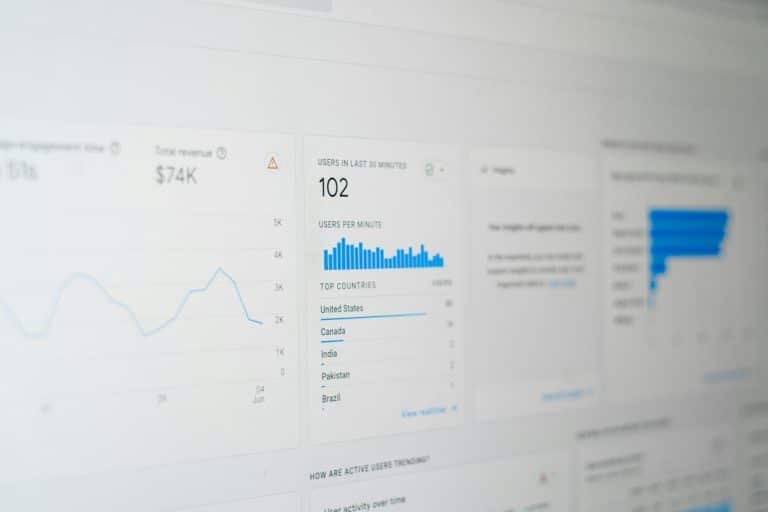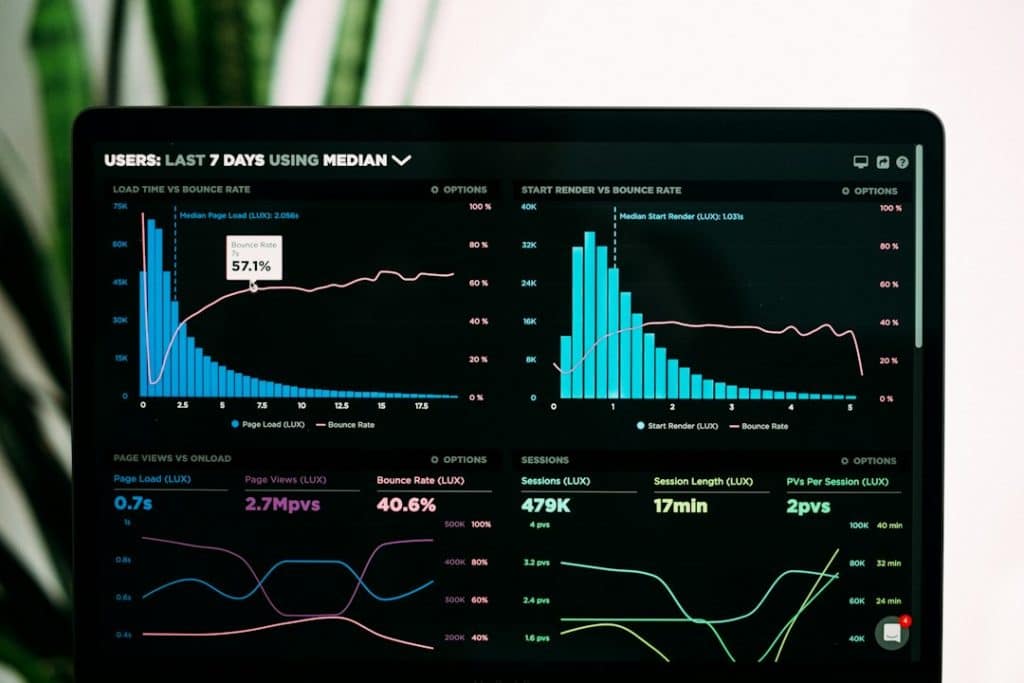
Quick answer: Data Manager is a new hub inside GA4 Admin, released as a beta on 6 November 2026, where you manage data streams, product links and data imports in one place. Data set up there flows from GA4 to Google Ads, but not back. If you build the same connection in both GA4 and Google Ads, the same conversions can be counted twice.
Most businesses we audit in the UAE, Pakistan and the UK already have conversion problems before any new feature arrives: a Google Ads tag and a GA4 import both set as primary, or two purchase events firing on one thank-you page. Data Manager makes the setup easier to see, but it also adds one more place where a duplicate can be created. This guide explains what changed and what to check.
What is Data Manager in GA4?
Data Manager is a tab in the left navigation of the GA4 Admin page, below My preferences. It brings three things together:
- Data streams for your website and app, added with Add stream.
- Connected products, meaning product links such as Google Ads and data import connections, added with Connect Product.
- Data imports for first-party data, campaign data from other platforms and item data.
It also shows a visual map of how your data is connected, flags broken connections, offers a Fix button for some issues, and includes a data strength guide that points out gaps in your measurement. Imports you already set up in GA4 appear there automatically.
Where do I find Data Manager?
Open GA4, click Admin, and look for Data Manager in the left menu under My preferences. You need the right permissions on the property to see it. Subproperties and roll-up properties, which are Analytics 360 features, do not support the Data Manager landing page yet.
Why can Data Manager cause double counting?
Google’s own guidance warns against activating an identical data pipeline in both GA4 and Google Ads, because that can log conversions twice. The risk is simple to picture. Say your agency uploaded offline sales to Google Ads last year. This month someone sets up the same sales import in GA4 Data Manager and links it to the same Ads account. Google Ads now receives the same sale from two routes. Smart Bidding sees a better cost per acquisition than you really have and starts spending more.
Connections that were built in Google Ads stay managed in Google Ads. They are not copied into GA4. That is exactly why you need to check both sides before adding anything new.
How do I check my setup before using Data Manager?
- List every conversion in Google Ads. Go to Goals, then Conversions, and note the source of each action: website tag, GA4 import, offline import or call.
- Find pairs that measure the same thing. A Google Ads purchase tag and an imported GA4 purchase event are a pair. Only one of them should be primary.
- Check existing imports in Google Ads before creating any import in GA4 Data Manager. If an import already runs in Ads, leave it there.
- Open Data Manager and look for warnings. Broken or red connections usually mean an expired link or a missing permission.
- Compare numbers for one week. Purchases or leads in your CRM, GA4 and Google Ads should be close. If Google Ads shows almost double, you have a duplicate.
Should I move my imports into Data Manager?
For new connections, Google recommends building them in Data Manager in GA4. For existing connections that already work in Google Ads, there is no need to rebuild them. Moving a working import is where most duplicates start, because the old one is often left running. If you do move an import, switch off the old one the same day and note the date so you can explain any change in your reports.
What does this mean for businesses in Pakistan and the Gulf?
Many stores in Pakistan and the UAE confirm orders by phone or WhatsApp, or take cash on delivery, so the real sale happens after the website visit. Offline imports are the way to give Google Ads that information. Data Manager makes those imports easier to manage from GA4. The rule stays the same: one route per conversion. If you track COD or WhatsApp orders, read our guides on tracking cash on delivery orders and tracking WhatsApp leads first.
Common mistakes
- Importing a GA4 key event into Google Ads while a native Google Ads tag for the same action is also primary
- Rebuilding an offline import in GA4 without switching off the one in Google Ads
- Ignoring broken connection warnings, so imports stop without anyone noticing
- Changing conversion sources in the middle of a campaign test
Frequently asked questions
Is GA4 Data Manager free?
Yes. It is part of the standard GA4 Admin area. It was released as a beta, so its features may still change.
Does Data Manager send data back from Google Ads to GA4?
No. Data set up in GA4 flows to linked Google Ads and Google Marketing Platform accounts. It does not flow the other way.
How do I know if my conversions are counted twice?
Compare one week of conversions in Google Ads with your CRM or store orders. If Ads reports close to double, check for two primary conversion actions that measure the same event.
Do I need to change anything today?
Not if your current setup works. Review your conversion list, keep one primary source per action, and use Data Manager for new connections only.
Not sure whether your Google Ads and GA4 are counting the same sales twice? Twebz, run by Naveed Tariq, audits GA4 and Google Ads conversion setups for businesses in the UAE, Pakistan, the UK and beyond. Book a free tracking audit or see our tracking services.