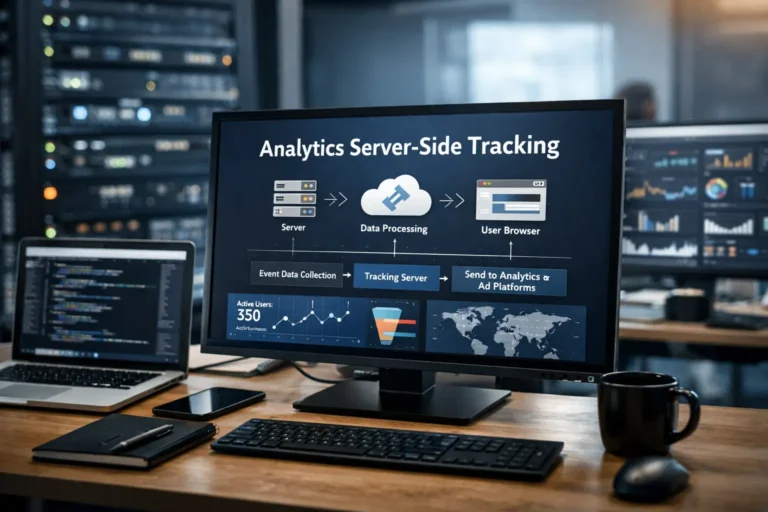

Server-Side Tracking Facebook
Server-Side Tracking Facebook: The Complete 2026 Setup Guide (60% More Conversions)
You’re losing money right now. As you read this sentence, your Facebook pixel is missing 30–40% of your conversions. iOS restrictions. Ad blockers. Browser privacy settings. Users opting out of tracking. Your competitors who’ve already switched to server-side tracking? They’re recovering those lost events while your campaigns optimize on incomplete data.
This isn’t a problem with Facebook Ads. It’s a problem with how you’re measuring them.
Server-side tracking with Facebook’s Conversions API (CAPI) solves this. By sending conversion data directly from your server to Facebook instead of relying on browser pixels, you’ll recover lost conversions, improve campaign optimization, and finally see the real ROI of your ad spend.
In this guide, you’ll learn exactly how to implement server-side Facebook tracking, including step-by-step setup instructions, common mistakes to avoid, and optimization strategies that generate real results.
Quick Answer: What Is Server-Side Tracking for Facebook?
Server-side tracking sends conversion data directly from your web server to Facebook’s servers, bypassing the user’s browser. Unlike the traditional Meta Pixel (which runs in the browser), Facebook’s Conversions API (CAPI) processes events server-to-server, making it immune to ad blockers, cookie restrictions, and privacy settings. Combined with pixel-based tracking, it creates hybrid tracking that recovers 30–40% more conversions than pixel-alone implementations.
Why Server-Side Tracking Matters (And Why It’s Not Optional in 2026)
In 2024–2026, the digital advertising landscape shifted fundamentally. Browser-based tracking—the foundation of marketing measurement for two decades—is breaking down.
The Problem With Traditional Pixel Tracking
The Meta Pixel (Facebook’s browser-based tracking code) was revolutionary when it launched. It allowed advertisers to track purchases, sign-ups, and custom events directly from user browsers. For years, it worked.
But it’s not working anymore.
Here’s why:
- iOS privacy changes (iOS 14.5+): Apple’s App Tracking Transparency means that even if Facebook tries to track users, the data becomes unreliable and limited.
- Safari & Firefox privacy defaults: These browsers limit cookie lifespan to 7 days. UTM parameters expire. Attribution breaks.
- Ad blockers: uBlock Origin, AdBlock, Brave, and Privacy Badger block pixel requests outright. Facebook sees nothing.
- Consent banners & regulations: GDPR and CCPA mean users opt out of tracking. Data collection grinds to a halt.
- Third-party cookie phase-out: Google has delayed it multiple times, but the industry is moving to first-party data. Pixels are becoming obsolete.
The result? Companies that rely only on the Meta Pixel report losing 30–40% of conversions. Facebook’s algorithm can’t optimize on data it doesn’t see. Campaigns become expensive. ROAS drops.
The Solution: Server-Side Tracking
Server-side tracking fixes this by moving the conversion data collection from the browser (client) to your backend server. Instead of relying on a pixel to fire in the browser, your server directly sends event data to Facebook.
Why this matters:
- ✅ Ad blockers can’t block it – The request doesn’t come from the browser; it comes from server-to-server.
- ✅ Cookie restrictions don’t apply – No browser cookies needed. First-party data instead.
- ✅ iOS privacy changes don’t affect it – Your server talks to Meta directly; Apple restrictions don’t interfere.
- ✅ More accurate matching – You send user emails, phone numbers, and IDs directly to Meta for precise user matching.
- ✅ Offline conversions work – Track phone calls, in-store purchases, and CRM events alongside online conversions.
- ✅ Better ROAS & optimization – Facebook’s algorithm gets the full conversion picture and optimizes better.
Case Study: Ray-Ban’s Implementation
Ray-Ban combined the Meta Pixel with Conversions API (server-side tracking). The results: 36% greater reach on Facebook and Instagram, 19% reduction in cost per 1,000 views, and 7% decrease in cost per conversion. This is typical of what we see when companies implement this properly.
Server-Side Tracking vs. Client-Side Tracking: The Core Difference
Understanding the difference is foundational to why server-side tracking works when pixels fail.
Client-Side Tracking (Meta Pixel)
How it works: A JavaScript snippet is added to your website. When a user performs an action (purchase, form submission, page view), the snippet fires and sends data directly from the user’s browser to Facebook’s servers.
Flow: User action → Browser → Meta Pixel JavaScript → Facebook servers
Vulnerabilities:
- Ad blockers intercept the request before it reaches Facebook
- Browser privacy settings limit or block the pixel
- Cookie restrictions (especially in Safari) reduce tracking window
- iOS privacy changes prevent Facebook from matching users accurately
- Slow website performance (pixel requests add load time)
Server-Side Tracking (CAPI)
How it works: Your web server receives the conversion event (e.g., a purchase confirmation). Your server then sends that event directly to Facebook’s Conversions API. No browser involved.
Flow: User action → Your server → Facebook Conversions API → Facebook servers
Advantages:
- ✅ Completely immune to ad blockers
- ✅ Bypasses browser privacy restrictions
- ✅ Faster (doesn’t add client-side overhead)
- ✅ More secure (PII data stays on your server, only hashed identifiers sent to Facebook)
- ✅ Direct server-to-server communication (more reliable)
- ✅ Supports offline conversions
- ✅ You maintain full data control
Comparison Table: Client vs. Server-Side Tracking
| Feature | Meta Pixel (Client-Side) | CAPI (Server-Side) | Hybrid (Both) |
|---|---|---|---|
| Ad Blocker Immunity | ❌ No | ✅ Yes | ✅ Full Coverage |
| Safari/Cookie Restrictions | ❌ Affected | ✅ Not Affected | ✅ Resilient |
| Data Accuracy | 60–70% | ~95% (with proper setup) | 98%+ |
| Offline Conversions | ❌ No | ✅ Yes | ✅ Yes |
| Setup Complexity | Very Simple | Moderate to Complex | Complex |
| Typical ROI Improvement | Baseline | +30–40% | +40–60%+ |
The verdict: In 2026, hybrid tracking (Pixel + CAPI) is the industry standard for any business that depends on accurate Facebook conversion data.
Facebook Conversions API (CAPI) Explained
Facebook’s Conversions API is the official server-side tracking solution. Understanding what it is and how it works is essential before implementation.
What Is the Facebook Conversions API?
The Conversions API (CAPI) is a REST API endpoint that accepts conversion event data from your backend server and sends it directly to Meta’s infrastructure. Meta then uses this data for:
- ✅ Measuring campaign performance
- ✅ Building audiences for retargeting
- ✅ Optimizing ad delivery (machine learning)
- ✅ Attribution reporting
- ✅ Event matching and deduplication
Unlike the Pixel (which is passive—it just fires and waits for responses), the Conversions API is active and intelligent. It accepts rich user data, matches conversions to users in Meta’s database, and feeds high-quality signals into Meta’s optimization algorithms.
Key Components of CAPI
1. Access Token
This is your authentication credential. You’ll generate it in Meta Business Manager and use it to authorize requests to the Conversions API endpoint.
2. Pixel ID
The unique identifier of your Facebook Pixel. All CAPI events are linked to this pixel, just like client-side events.
3. Event Data
The core information you send. Standard events include:
Purchase– A completed transactionLead– A form submission or inquiryViewContent– A product or content page viewAddToCart– Item added to shopping cartInitiateCheckout– Checkout flow startedSubscribe– Subscription or membership signupCompleteRegistration– Account creation completed
4. User Data Parameters
Identifiers that help Meta match conversions to users. These include:
em– User email (hashed)ph– Phone number (hashed)fn– First name (hashed)ln– Last name (hashed)ge– Gender (hashed)ct– City (hashed)st– State (hashed)zp– Postal code (hashed)country– Country code (hashed)fbc– Facebook click ID (from browser cookie)fbp– Facebook pixel ID (from browser cookie)
5. Custom Data & Contents
Additional event details like purchase value, currency, product IDs, and custom parameters.
How CAPI Processes Data
When you send an event to CAPI:
- Your server makes a HTTPS POST request to Meta’s Conversions API endpoint
- Meta receives the event and validates the data
- Meta attempts to match the user (using hashed identifiers like email or FBC cookie)
- If a match is found, the event is attributed to that user in Meta’s systems
- The event is used for optimization, reporting, and audience building
- You receive a response with the event ID and any validation errors
Pixel vs. CAPI vs. Conversions API Gateway: Which One Should You Use?
There are three ways to send event data to Meta. Choosing the right one depends on your technical resources and business needs.
Option 1: Meta Pixel (Client-Side Only)
What it is: JavaScript code that runs in the browser and tracks user actions.
Setup time: 5–10 minutes
Who it’s for: Beginners, very small businesses, or teams with no technical resources
Pros:
- Simple to install (just add a code snippet)
- No server-side development needed
- Tracks basic user interactions automatically
Cons:
- Loses 30–40% of conversions due to privacy restrictions and ad blockers
- No offline event tracking
- Limited user data (restricted by browser privacy)
- Slow website performance (adds client-side load)
- Not GDPR-compliant by default
Verdict: If you can only choose one, the Pixel alone is inadequate for serious businesses in 2026.
Option 2: Facebook Conversions API (CAPI) with GTM Server-Side
What it is: You set up a Google Tag Manager Server Container (sGTM) that receives events from your website and forwards them to Meta’s Conversions API.
Setup time: 2–4 weeks (depending on your GA4 and GTM expertise)
Who it’s for: E-commerce, SaaS, and larger businesses with technical resources
Pros:
- ✅ Highly flexible – Can integrate with GA4, Google Ads, TikTok, etc. from one central place
- ✅ Full control over data – You decide what to send to Meta
- ✅ Better privacy compliance – Data stays on your servers, only hashed values sent
- ✅ Scalable – Works for any traffic volume
- ✅ Recovers 30–40% more conversions than Pixel alone
Cons:
- ❌ Technical complexity – Requires GTM and GA4 knowledge
- ❌ Longer implementation – Usually 2–4 weeks
- ❌ Requires cloud infrastructure (Google Cloud Platform)
- ❌ Ongoing maintenance needed
- ❌ More potential points of failure
Verdict: The best option for businesses that want maximum control and are willing to invest in proper setup.
Option 3: Meta Conversions API Gateway
What it is: Meta’s managed solution for server-side tracking. You don’t set up your own server infrastructure; Meta manages it.
Setup time: Less than 1 hour
Who it’s for: Non-technical teams, Shopify stores, and businesses that want simplicity
Pros:
- ✅ Extremely fast setup (minutes, not weeks)
- ✅ No technical knowledge required
- ✅ Meta maintains all infrastructure and updates
- ✅ Automatic event deduplication
- ✅ Affordable (typically $10/pixel/month via Stape)
Cons:
- ❌ Limited flexibility – Only works with Meta platforms
- ❌ Newer technology – Fewer case studies and proven implementations
- ❌ Less granular control over data mapping
- ❌ Still relatively new (features being added)
Verdict: Great for quick implementation; less ideal if you need multi-platform tracking or custom data logic.
Quick Decision Matrix
| Scenario | Best Choice | Why |
|---|---|---|
| Shopify store, non-technical | CAPI Gateway | Easiest setup, built-in deduplication |
| Enterprise SaaS with GA4 | GTM Server-Side | Maximum flexibility and control |
| Multi-platform tracking (Meta, GA, TikTok) | GTM Server-Side | Centralizes all server-side logic |
| Budget-conscious, simple setup | CAPI Gateway (Stape) | Low cost, minimal maintenance |
| GDPR/CCPA compliance required | GTM Server-Side | Full data control and filtering |
| Complex offline conversions (CRM, phone orders) | GTM Server-Side + Custom Backend | Can integrate multiple data sources |
Recommendation: For most businesses, hybrid tracking (Pixel + CAPI with GTM Server-Side) is the optimal choice. It balances accuracy, flexibility, and scalability.
How Server-Side Tracking Works: The Technical Flow
Understanding the mechanics helps troubleshoot issues and optimize performance.
The Complete Data Flow (Step-by-Step)
Step 1: User Action on Your Website
A user completes a conversion event (purchases a product, submits a form, signs up for a trial).
Step 2: Client-Side Event Tracking (Web GTM)
Your website’s GTM web container detects the event and fires a tag. This tag:
- Captures user data (email, phone, etc.)
- Collects event data (purchase amount, product IDs, etc.)
- Grabs browser cookies (
_fbp,_fbc) - Sends everything to your GTM server container via HTTPS POST
Step 3: Server-Side Processing (GTM Server Container)
Your GTM server container receives the event payload. The GA4 Client parses it into a standardized format. Your server-side rules then:
- Hash personally identifiable information (PII) using SHA-256
- Map event names to Meta standard events (Purchase, Lead, etc.)
- Extract browser cookies for Facebook Click ID (FBC) and Facebook Pixel ID (FBP)
- Build the CAPI payload (event data + user identifiers)
Step 4: Send to Meta Conversions API
Your Facebook CAPI tag makes a HTTPS POST request to Meta’s API endpoint:
POST https://graph.facebook.com/v18.0/{pixel_id}/events?access_token={token}
The payload includes:
- Hashed user identifiers (email, phone, name, location)
- FBP and FBC cookies (for browser-based matching)
- Event name and value
- Custom data (products, currency, etc.)
- Event ID (for deduplication)
Step 5: Meta Processes the Event
Meta’s systems receive the event and:
- Validate the payload structure
- Attempt to match the user (using FBP, FBC, or hashed identifiers)
- Link the conversion to the matched user
- Store it in Meta’s attribution system
- Use it for campaign optimization (machine learning)
Step 6: Response & Logging
Meta returns a response with:
- Status code (200 = success, 400 = validation error, etc.)
- Event ID confirmation
- Any warnings or validation issues
Step 7: Client-Side Pixel (Optional)
Simultaneously (or in parallel), your Meta Pixel also fires in the browser, creating a second event. Meta uses both to deduplicate and ensure accuracy.
The Complete Architecture Diagram (Text Description)
User Action on Website
↓
GTM Web Container (captures event + user data + cookies)
↓
Sends to GTM Server Container via transport_url
↓
GA4 Client (parses incoming data)
↓
Facebook CAPI Tag (builds payload, hashes PII, creates event)
↓
Meta Conversions API (graph.facebook.com/v18.0/{pixel_id}/events)
↓
Meta Systems (matches user, records conversion, optimizes ads)
↓
Events Manager Dashboard (data visible in real-time)
Step-by-Step: Setting Up Facebook CAPI with Google Tag Manager
This is the most popular implementation method. We’ll walk through every step required to get server-side tracking working.
Prerequisites (Before You Start)
Make sure you have:
- ✅ Meta Business Manager account with admin access
- ✅ Facebook Pixel created and installed (at minimum on thank-you/confirmation page)
- ✅ Google Tag Manager web container with GA4 event tracking
- ✅ Google Analytics 4 property connected to your website
- ✅ Google Cloud Project (for GTM Server Container hosting)
- ✅ Custom domain for GTM server container (e.g., analytics.yourdomain.com)
- ✅ Access to your website’s DNS and SSL certificate settings
Step 1: Set Up GTM Server Container
1.1 Create a new server container in GTM
- Go to Google Tag Manager → Select your web container
- Click “Containers” in the left sidebar
- Click the “+” button to create a new container
- Choose “Server” as the container type
- Name it (e.g., “Production Server”)
- Choose your deployment region (usually US for Meta CAPI)
- Click “Create”
1.2 Deploy the server container to Google Cloud
- In the new server container, go to “Admin” → “Tagging Server”
- Click “Create new tagging server”
- Choose “Automatically create and manage a Google Cloud project”
- GTM will set up the infrastructure automatically
- Click “Create”
- Wait 5–10 minutes for deployment to complete
1.3 Set up a custom domain
- Go to “Admin” → “Tagging Server” in your server container
- Find the “Custom domain” section
- Click “Add custom domain”
- Enter your subdomain (e.g., analytics.yourdomain.com)
- GTM will give you a DNS record to add (CNAME or A record)
- Add this record to your DNS provider (Cloudflare, Route 53, etc.)
- Wait for DNS propagation (usually 24–48 hours)
- Return to GTM and verify the domain (GTM will confirm automatically)
Step 2: Set Up GA4 Client (Data Receiver)
2.1 Create a GA4 Client in the server container
- In your GTM server container, go to “Clients”
- Click “New”
- Choose “Google Analytics: GA4” as the client type
- Name it (e.g., “GA4 Client”)
- Under “Configuration,” check “Default GA4 paths”
- Click “Save”
What this does: The GA4 Client listens for incoming requests from your GTM web container and parses them into a standard format that other tags (like Facebook CAPI) can use.
Step 3: Configure Your Web Container to Send Data to Server Container
3.1 Add transport_url to your GA4 tag (in web container)
- Go to GTM Web Container → Tags
- Edit your main GA4 tag
- Under “Settings” → “Transport URL,” enter your server container URL
- Format:
https://analytics.yourdomain.com/collect(replace with your custom domain) - Save the tag
What this does: All GA4 events from your website will now be sent to your server container in addition to Google Analytics.
3.2 Ensure user data is included in GA4 events
- In the same GA4 tag, expand “User Data”
- Add user identifiers:
- Email address (map to user_data.email_address)
- Phone number (map to user_data.phone_number)
- User ID (map to user_id)
- Save the tag
Step 4: Generate Facebook Access Token
4.1 Get your Pixel ID
- Go to Meta Business Manager
- Navigate to “Events Manager”
- Select your Pixel from the list
- Go to “Settings” at the top
- Copy the Pixel ID (it’s a long number)
4.2 Generate an access token
- In Events Manager, go to “Settings” → “Conversions API”
- Click “Generate access token”
- A new token will appear
- Copy it immediately and store it securely (you won’t be able to see it again)
- Store it in Google Secret Manager or a password manager—never hardcode it in your config
Step 5: Create Facebook CAPI Tag in Server Container
5.1 Add the Facebook CAPI template
- Go to your GTM Server Container
- Navigate to “Templates” in the left sidebar
- Click “Search Gallery” (the magnifying glass)
- Search for “Facebook Conversions API”
- Select the official Facebook template
- Click “Add to Workspace”
5.2 Create the tag
- Go to “Tags” → “New”
- Choose “Facebook Conversions API” as the tag type
- Name it (e.g., “Facebook CAPI – All Events”)
5.3 Configure the tag settings
- Pixel ID: Paste the Pixel ID you copied
- Access Token: Paste your access token (or reference it from Secret Manager if using variables)
- Payload Override (Optional): Leave as “Inherit from client” for now
- User Data: Ensure email, phone, and names are included
- Content Data: For e-commerce, enable automatic mapping of GA4 items to contents
- Check: “Generate _fbp cookie if not exist”
5.4 Create a trigger
- Under “Triggering,” click “Create new trigger”
- Choose “Custom Event” as the trigger type
- Set “Event name” to match GA4 events you want to track, e.g., “purchase”
- Click “Save”
5.5 Save the tag
Click “Save” to create the Facebook CAPI tag.
Step 6: Test Your Implementation
6.1 Enable Preview Mode
- In your GTM server container, click “Preview” at the top right
- Enter your server container domain (e.g., analytics.yourdomain.com)
- Click “Connect”
6.2 Test an event
- Go to your website
- Complete a conversion action (purchase, form submission, etc.)
- In the GTM preview panel, watch for:
- GA4 event firing (should show in server container logs)
- Facebook CAPI tag firing
- HTTP 200 response from graph.facebook.com
6.3 Check Meta Events Manager
- Go to Meta Business Manager → Events Manager
- Select your Pixel
- Click “Test Events” at the top right
- You should see test events coming in (may take 5–10 minutes to appear)
Event Deduplication: The Critical Step Everyone Gets Wrong
This is where most implementations fail.
When you send events both client-side (Pixel) and server-side (CAPI), Facebook receives the same event twice. Without deduplication, your conversion counts double. Your ROAS calculations are wrong. Your data is corrupted.
The Deduplication Problem
Scenario: A user purchases a product for $100 on your website.
- Your Meta Pixel fires (client-side) and sends a Purchase event to Facebook
- Simultaneously, your server sends the same Purchase event via CAPI (server-side)
- Result: Facebook records TWO $100 purchases = $200 attribution (false data)
Why it matters:
- ❌ False ROAS calculations (you think you’re getting 5x ROI when it’s 2.5x)
- ❌ Budget allocation errors (you overspend on high-performing ads)
- ❌ Poor campaign optimization (Facebook’s algorithm sees inflated metrics)
- ❌ Inaccurate reporting (stakeholders see fake data)
How Deduplication Works
The solution: event_id matching
Each event you send to Meta (both client-side and server-side) must have a unique event_id. When Meta receives two events with the same event_id, it counts them only once.
Flow:
- When a conversion occurs, generate a unique event ID (UUID)
- Send it to the Meta Pixel (client-side)
- Send it to the CAPI tag (server-side)
- Meta deduplicates on matching event_id
- Result: One conversion counted correctly
How to Implement Deduplication
Step 1: Generate event_id in your web container
Create a JavaScript variable in your GTM web container that generates a UUID:
function generateEventId() {
return ‘xxxxxxxx-xxxx-4xxx-yxxx-xxxxxxxxxxxx’.replace(/[xy]/g, function(c) {
var r = Math.random() * 16 | 0, v = c === ‘x’ ? r : (r & 0x3 | 0x8);
return v.toString(16);
});
}
window.eventId = generateEventId();
Step 2: Add event_id to GA4 events
- In your GA4 tag (web container), add a custom parameter:
- Parameter name:
event_id - Value: {{eventId}} (reference the variable above)
- This ensures every GA4 event includes the event_id
Step 3: Configure CAPI to use event_id
- In your Facebook CAPI tag (server container), ensure the event_id is mapped
- Under “Event Data,” check that
event_idis populated from the incoming GA4 payload - Meta will automatically deduplicate based on this
Step 4: Verify deduplication in Events Manager
- Go to Meta Events Manager
- Select your Pixel
- Look at “Test Events”
- Send a test event from your website
- You should see ONE event in Meta (not two)
- If you see duplicate events, your event_id implementation isn’t working
To verify deduplication is working:
- Complete a test purchase with BOTH Pixel + CAPI firing
- Check Meta Events Manager
- You should see ONE conversion event, not two
- If you see TWO events, deduplication is broken—your event_ids aren’t matching
Event Match Quality (EMQ): Why It Matters & How to Improve It
Event Match Quality (EMQ) is Meta’s scoring system for how well your events match to users in their database.
What Is EMQ?
EMQ measures the percentage of your conversion events that Facebook can successfully link to actual user accounts. It’s scored from 0–100%, with higher being better.
Why it matters:
- ✅ Higher EMQ = Better audience matching = Better ad optimization
- ✅ With high EMQ, Facebook’s algorithm learns faster and spends more efficiently
- ✅ Lower EMQ = Wasted budget on unmatched users = Poor ROAS
Typical EMQ Scores:
- 0–30%: Poor (pixels only, minimal user data)
- 31–60%: Good (some user identifiers sent)
- 61–80%: Excellent (comprehensive user data)
- 81–100%: Outstanding (rich first-party data, well-matched)
How to Improve EMQ
1. Send Comprehensive User Data
The more user identifiers you send to Meta, the higher your EMQ. Include:
- ✅ Email address (highest impact)
- ✅ Phone number
- ✅ First name + Last name
- ✅ City + State/Province + Postal Code
- ✅ Country
- ✅ Date of birth (if available)
- ✅ Gender
- ✅ External ID (customer ID, loyalty ID)
Implementation: Add these to your GA4 user_data parameters in your web container.
2. Hash Data Correctly
Meta expects user data to be hashed using SHA-256. Most GTM templates do this automatically, but verify:
- Email should be: lowercase → remove whitespace → SHA-256 hash
- Phone should be: remove formatting → SHA-256 hash
- Names should be: lowercase → remove spaces → SHA-256 hash
3. Use Browser Cookies (FBP & FBC)
If available, include:
- FBP (_fbp cookie): Facebook Pixel ID (generated by Meta Pixel)
- FBC (_fbc cookie): Facebook Click ID (from ad click)
These are browser identifiers that dramatically improve matching.
4. Ensure Data Quality
- ✅ Validate email addresses before sending (no typos)
- ✅ Remove formatting from phone numbers (keep only digits)
- ✅ Use consistent name formatting
- ✅ Avoid placeholder data (test@example.com, 555-1234)
5. Monitor EMQ in Meta Events Manager
- Go to Meta Events Manager
- Select your Pixel
- Click on any event
- Scroll down to see “Match Rate Quality”
- Target is >80% for optimal performance
Common Mistakes & How to Fix Them
Most server-side tracking implementations fail not because of complexity, but because of these preventable mistakes.
Mistake #1: Not Including User Data
The error: Sending only event data (purchase amount, product ID) without user identifiers.
Result: EMQ drops to 30–40%. Meta can’t match conversions to users. ROAS tanks.
The fix: Always include email, phone, name, and location data. Even partial data improves matching.
// Good: Includes user data
{
“event_name”: “Purchase”,
“event_id”: “abc123”,
“user_data”: {
“em”: “sha256(user@example.com)”,
“ph”: “sha256(14155551234)”,
“fn”: “sha256(john)”,
“ln”: “sha256(doe)”,
“ct”: “sha256(seattle)”,
“st”: “sha256(wa)””
},
“custom_data”: {
“value”: 99.99,
“currency”: “USD”
}
}
Mistake #2: Broken Event Deduplication
The error: Pixel and CAPI both fire, but event_id doesn’t match. Facebook records two conversions.
Result: False ROAS (you think you’re 3x ROI when actually 1.5x), budget misallocated.
The fix: Generate event_id on the client side, pass it to both Pixel and CAPI. Test thoroughly.
Mistake #3: Missing FBC (Facebook Click ID)
The error: You don’t capture the FBC cookie from ad clicks, so conversions don’t attribute to ads.
Result: Conversions appear in CAPI but won’t attribute to specific ad campaigns in Meta.
The fix: Ensure your GTM web container captures the _fbc cookie and passes it to your server container:
user_data: {
…,
“fbc”: “{{FBC_Cookie}}”
}
Mistake #4: Incorrect Data Hashing
The error: You send hashed email as “hello@EXAMPLE.COM” instead of “hello@example.com” (lowercase first).
Result: Hash doesn’t match Meta’s database. User not matched. Conversion lost.
The fix: Always normalize before hashing:
- Email: lowercase, trim whitespace
- Phone: remove all non-digits
- Names: lowercase, remove spaces
Mistake #5: Not Testing Before Going Live
The error: You deploy to production without testing, and suddenly conversions spike (duplicates) or disappear (broken events).
Result: Hours of troubleshooting, incorrect data in Meta, campaign optimization broken.
The fix: Always test in GTM Preview Mode first. Create test events using Meta’s test event code feature. Verify data in Events Manager before scaling.
Mistake #6: Using GA4 Ecommerce Items Incorrectly
The error: You send GA4 items array to CAPI without proper formatting. Meta rejects the “contents” parameter.
Result: Error in Events Manager: “Invalid Contents Parameter”
The fix: Ensure items are properly formatted as a JSON array with required fields (id, title, quantity, price). Use GA4 ecommerce best practices.
Mistake #7: Low Match Rates Despite Good Data
The error: You’re sending email/phone, but EMQ is still <50%.
Possible causes:
- Data quality issues (misspelled emails, fake test data)
- Hashing done incorrectly
- Missing FBC/FBP cookies
- Timing issues (event fired before user data loaded)
The fix: Audit your GTM implementation. Check Network tab in DevTools. Verify event payloads actually include user data before sending.
Troubleshooting & Validation: How to Know If Your Implementation Is Working
Even with perfect setup, things can go wrong. Here’s how to diagnose and fix issues.
Checklist: Is Your Server-Side Tracking Working?
| Check | Expected Result | How to Verify |
|---|---|---|
| GTM Server Container Deployed | Container shows “Active” | GTM Admin → Tagging Server |
| Custom Domain Working | Domain resolves, shows GTM container | Visit analytics.yourdomain.com in browser |
| GA4 Events Reaching Server | Events visible in server GTM logs | GTM Preview → Complete event → Check server logs |
| Facebook CAPI Tag Firing | Tag shows “Fired” in preview panel | GTM Server Preview → look for CAPI tag in log |
| Events Reaching Meta | HTTP 200 response to graph.facebook.com | Browser DevTools → Network tab → filter “graph.facebook.com” |
| Events in Meta Events Manager | Events appear in real-time (5–10 min delay) | Meta Events Manager → Test Events tab |
| Deduplication Working | One event counted (not two) when Pixel + CAPI both fire | Send test conversion, check event count in Meta |
| User Data Included | Email, phone, name in event payload | Inspect CAPI request in Network tab |
| EMQ Score Visible | EMQ ≥60% (target ≥80%) | Meta Events Manager → Event → Match Rate Quality |
Common Error Messages & Fixes
Error: “Invalid Contents Parameter”
Cause: CAPI payload includes malformed e-commerce data
Solution: Remove or fix the contents array in your CAPI tag. Ensure items are valid JSON objects with id, quantity, price.
Error: “OAuthException – Access Token Expired”
Cause: Your Facebook access token is invalid or revoked
Solution: Generate a new access token in Meta Events Manager and update your GTM CAPI tag.
Error: “Invalid Pixel ID”
Cause: Wrong Pixel ID in your CAPI tag configuration
Solution: Copy the correct Pixel ID from Meta Events Manager and update your tag.
Error: “No matching user found”
Cause: User data not included or incorrectly hashed
Solution: Verify email/phone are included, normalized (lowercase, no spaces), and hashed with SHA-256.
Performance Monitoring
Monitor these metrics weekly:
- Event Volume: Total server-side events sent to Meta. Should match or exceed your Pixel events.
- Match Rate: Percentage of events Meta successfully matched to users. Target: ≥80%
- Conversion Count Discrepancy: Compare Pixel conversions vs. CAPI conversions in Meta. Should be similar (after deduplication).
- ROAS: Track ROAS before/after implementation. You should see +20–40% improvement within 2–4 weeks.
Privacy Compliance: GDPR, CCPA & Data Protection
Server-side tracking gives you better control over data, but it also brings privacy responsibilities.
GDPR Compliance
Key Requirements:
- ✅ Get explicit user consent before collecting PII (email, phone, etc.)
- ✅ Hash sensitive data before sending to Meta (PII should never be sent unhashed)
- ✅ Provide clear privacy notices explaining what data is collected and shared
- ✅ Allow users to opt out of tracking
- ✅ Maintain detailed processing agreements with Meta and your CDP
Implementation: Use a consent management platform (CMP) like Osano, OneTrust, or Cookiebot to gate tracking based on user consent.
CCPA Compliance (California)
Key Requirements:
- ✅ Disclose data collection in your privacy policy
- ✅ Allow users to opt-out of data sales
- ✅ Provide a “Do Not Sell My Personal Information” link
- ✅ Respond to data access requests within 45 days
Implementation: Use CCPA-compliant consent tools. If a user opts out, exclude them from server-side tracking.
Best Practices for Privacy-Compliant Server-Side Tracking
- ✅ Minimize data: Only send data to Meta that’s necessary for optimization
- ✅ Hash everything: Never send raw PII (email, phone, names) unhashed
- ✅ Use first-party data: Rely on your own customer database, not third-party pixels
- ✅ Implement consent: Respect user consent choices before sending data
- ✅ Audit regularly: Review what data you’re sending to Meta monthly
- ✅ Document everything: Keep records of your data processing activities (required by GDPR)
Unlike client-side pixels, server-side tracking keeps PII on your servers (not sent to the browser). Only hashed, anonymized identifiers are sent to Meta. This is more privacy-compliant and gives you better data control.
Pro Tips: Advanced Optimization Strategies
Once your basic server-side tracking is working, these advanced tactics unlock even better results.
Tip #1: Implement Offline Event Tracking
What it is: Send conversions that happen outside your website (phone calls, in-store purchases, CRM leads) to Meta.
Implementation: Collect offline conversion data and batch-upload to Meta via the Offline Event API or server-side CAPI.
Result: Meta sees your full conversion picture and optimizes more effectively. Typical improvement: +15–25% ROAS.
Tip #2: Event Windowing & Frequency Caps
What it is: Control how many conversion events you send per user to avoid overloading Meta’s matching.
Implementation: In your GTM server-side logic, limit the frequency of conversion events from the same user (e.g., max 1 purchase per day).
Result: Cleaner data, better match rates, improved optimization.
Tip #3: A/B Test Tracking Implementations
What it is: Run different cohorts with different tracking setups to measure the impact.
Setup:
- Group A: Pixel only
- Group B: Pixel + basic CAPI (limited user data)
- Group C: Pixel + comprehensive CAPI (full user data)
Result: Measure the actual ROAS improvement from your implementation. Most see 20–50% improvement with Group C.
Tip #4: Custom Events for Advanced Attribution
What it is: Create custom events beyond standard ones to capture your unique business actions.
Examples:
- High-value_lead (not just “Lead”)
- Subscription_upgrade
- Content_consumption_milestone
- Cart_recovery
Implementation: Define custom events in your GA4 schema, then map them to Meta.
Result: More granular targeting and attribution. Better campaign optimization.
Tip #5: Real-Time Dashboard for Monitoring
What it is: Create a Data Studio dashboard showing real-time CAPI performance.
Metrics to track:
- Daily events sent to Meta
- Match rate / EMQ score
- Events with user data vs. without
- Error rates and failed requests
- ROAS by campaign (from Meta)
Result: Catch issues in real-time. Optimize continuously.
FAQ: Server-Side Facebook Tracking
Q: Do I need to remove my Meta Pixel if I implement server-side tracking?
A: No. Keep the Pixel. The best practice is hybrid tracking (both Pixel and CAPI). They work together with event deduplication to capture the full conversion picture. Removing the Pixel means you lose browser-based data that CAPI might miss.
Q: How long does server-side tracking implementation take?
A: Depends on the approach:
- CAPI Gateway (Stape): 30 minutes to 1 hour
- GTM Server-Side: 2–4 weeks (for a proper, enterprise implementation)
- Custom backend integration: 4–8 weeks
Q: Will server-side tracking improve my ROAS immediately?
A: Typically, you’ll see improvements within 2–4 weeks as Meta’s algorithm adapts to better data. However, the first 1–2 weeks might show fluctuation as Facebook recalibrates its learning model.
Q: What if my conversion data quality is poor (missing emails, bad phone numbers)?
A: Start with what you have. Implement server-side tracking with your current data. Then, improve data quality over time by collecting more user information at checkout or sign-up. As your data quality improves, EMQ and ROAS will improve proportionally.
Q: Can I track events that happen offline (phone calls, in-store purchases)?
A: Yes, this is one of server-side tracking’s biggest advantages. Collect offline conversion data and batch-upload it to Meta via the Offline Event API. This closes the attribution loop for multi-channel businesses.
Q: What’s the difference between event_id and external_id?
A:
- event_id: Unique identifier for each conversion event. Used for deduplication between Pixel and CAPI.
- external_id: Your internal customer ID (e.g., from your CRM or database). Used to match conversions across multiple sessions/devices.
Q: How do I handle third-party checkouts (Stripe, PayPal) with server-side tracking?
A: Use webhooks from your payment processor to send conversion events to Meta. When a payment is confirmed, your server receives a webhook and immediately sends a CAPI event to Meta. This works even if the user never returns to your site.
Q: What happens if my server goes down? Will Meta stop receiving events?
A: Yes. If your server is down, CAPI events won’t be sent. This is why:
- Keep the Meta Pixel as a fallback (hybrid tracking)
- Set up monitoring/alerting for your GTM server container
- Use a reliable hosting provider with high uptime guarantees
Q: Is server-side tracking more expensive than Pixel tracking?
A: Slightly. You have infrastructure costs (Google Cloud, CDN, etc.), but it’s usually <$100/month for most businesses. The ROI improvement (20–50% better ROAS) far outweighs the cost.
Q: Can I use server-side tracking with other ad platforms (TikTok, Google Ads, LinkedIn)?
A: Yes. GTM Server-Side is perfect for this. You can send the same event data to multiple platforms’ APIs from one central location, eliminating duplicate integrations.
The Bottom Line: Server-Side Tracking Facebook in 2026
Traditional Meta Pixel tracking is no longer sufficient. iOS privacy changes, ad blockers, cookie restrictions, and user consent requirements mean that 30–40% of your conversions are invisible to Facebook’s optimization algorithm.
Server-side tracking via Facebook’s Conversions API (CAPI) fixes this problem. By sending conversion data directly from your backend to Meta, you:
- ✅ Recover 30–40% of lost conversions
- ✅ Improve Event Match Quality (EMQ) by 200%+
- ✅ Increase ROAS by 20–60%
- ✅ Reduce cost per acquisition
- ✅ Gain better data control and privacy compliance
- ✅ Future-proof your tracking as cookies disappear
The best implementation is hybrid tracking: Keep your Meta Pixel for browser-based data, add server-side CAPI for backend data, and deduplicate so Facebook counts each conversion once. This approach is used by companies like Ray-Ban, and the results speak for themselves.
Next Steps:
- Assess your current pixel setup. How many conversions are you missing?
- Decide on your implementation approach (GTM Server-Side or CAPI Gateway)
- Set up your GTM server container and Facebook access token
- Implement event deduplication and EMQ optimization
- Test thoroughly before going live
- Monitor ROAS improvements over 4 weeks
- Continuously optimize based on EMQ scores and conversion data quality
The companies that implement server-side tracking in 2026 will have a massive competitive advantage. Don’t let your conversion data slip away.
📋 TL;DR: Server-Side Tracking Facebook
What it is: Sending conversion data directly from your server to Meta’s Conversions API instead of relying on browser pixels.
Why it matters: Traditional pixels miss 30–40% of conversions due to ad blockers, cookie restrictions, and iOS privacy changes.
Key benefit: Recover lost conversions, improve ROAS by 20–60%, and future-proof your tracking.
Implementation: Use GTM Server-Side (most flexible) or CAPI Gateway (fastest).
Critical steps:
- Set up hybrid tracking (Pixel + CAPI)
- Implement event deduplication with event_id
- Send comprehensive user data for high EMQ
- Monitor and test thoroughly
Expected result: 30–60% more conversions tracked, improved optimization, higher ROAS.
Ready to Recover Your Lost Conversions?
Start your server-side tracking implementation today.
Choose your path:
- → Fast track (1 hour): Use Meta’s Conversions API Gateway via Stape
- → Professional track (2–4 weeks): Implement GTM Server-Side for maximum control
- → Enterprise track: Custom backend integration with full data ownership
Questions? This guide covers 95% of common scenarios. For complex setups, consult with a certified GTM or marketing analytics expert.